Config at Scale: Designing Host Management for Datacenter
Translating a powerful but technical declarative configuration system into a UI that infrastructure admins could actually use, without losing the precision engineers needed.
Role
Product Designer — onboarding & config editing UI
Timeline
3 months · 2022
Team
PM · Eng Architects · UI Engineers · fellow designer
Research
Moderated usability sessions · iteration from findings
Platform
vSphere Client · VMware Cloud Foundation
Users
Infrastructure Admins managing host configurations at scale
Background
Imagine managing hundreds of servers, each needing to match the same security policies, network settings, and storage configurations. In most environments, that meant doing it by hand, host by host, with no way to know when something had drifted.
The Problem
No built-in way to manage configuration at scale
Infrastructure admins were responsible for ensuring every host in a cluster matched organizational requirements. But vSphere had no way to define what "correct" looked like across a cluster, let alone detect when a host drifted from it. The only option was manual: checking and reconfiguring each host individually.
The Opportunity
Define once, apply everywhere
Configuration Profiles gave admins a way to define a desired state once and apply it to every host in a cluster in a single operation, with automatic compliance checking and drift remediation built in.
My Role
This was my first project at VMware. I collaborated with another designer on the team, picking up work originally established by the team's lead designer who had gone on parental leave. My scope covered the onboarding flow and configuration editing UI, with contributions to the compliance view. The broader team spanned India, Bulgaria, and California.
I also initiated and ran usability testing, which wasn't part of the original plan. The existing personas didn't give me enough to design with confidence.
Main Workflow
1
Enable Configuration Profiles
Turn on the feature at the cluster level in vSphere Client
→
2
Import Host Settings
Extract config from an existing host or import a standards file as the baseline
→
3
Edit Settings in Draft
Review and adjust the configuration in a human-readable UI before committing
→
4
Apply to All Hosts
Deploy the desired configuration to every host in the cluster in one operation
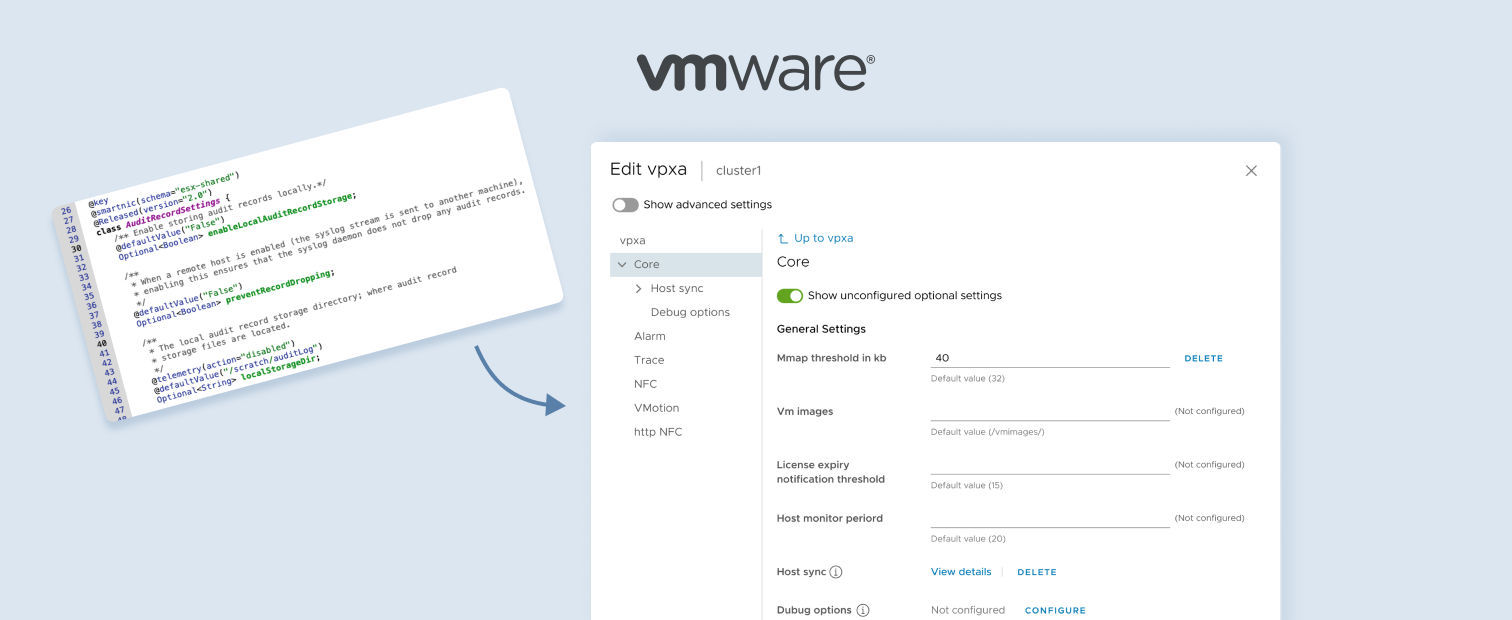
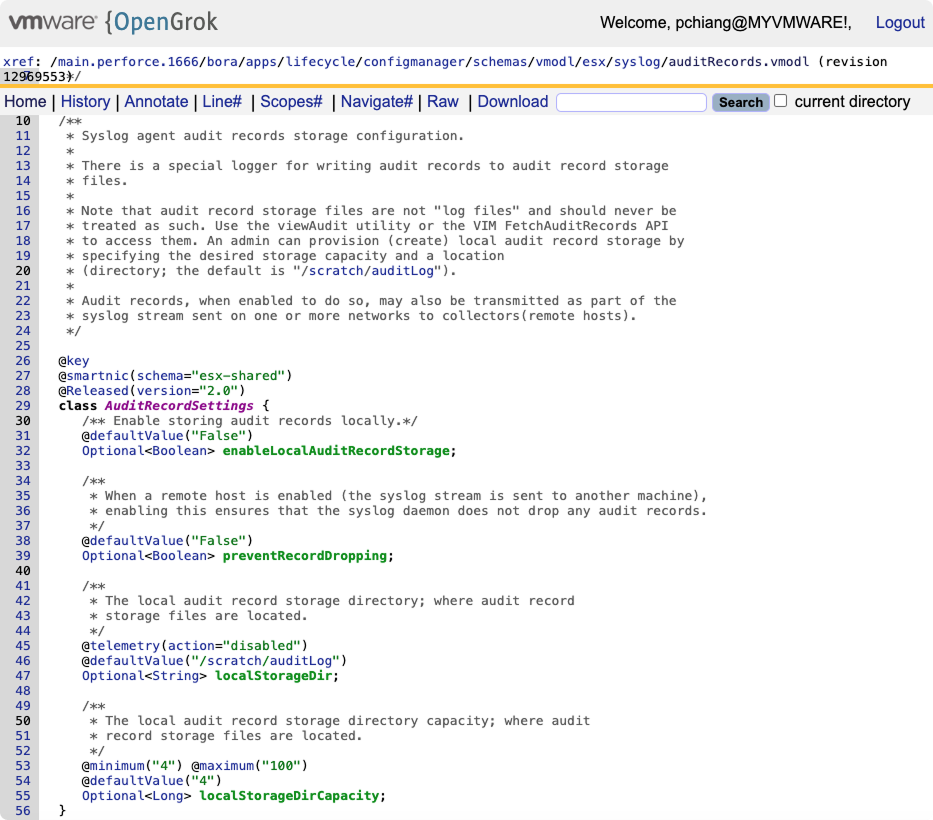
The underlying system was powerful, but its source of truth was a dense JSON file built by engineers, for engineers. Making steps 2 and 3 usable for IT administrators without losing the precision they depend on was the central design problem.
Design Challenges
Challenge 01
Making JSON Human-Readable
The host configuration JSON file is enormous: hundreds of settings covering networking, security, storage, and more, most of which an admin will never touch. Presenting everything at once wasn't just overwhelming; it actively buried the settings that actually mattered. Admins needed to find what they'd configured, spot what was non-compliant, and make changes without wading through hundreds of fields they'd never set.
The core tension was one of audience: power users who configured advanced settings needed to see them, while most admins only cared about a small subset. A single flat view couldn't serve both.
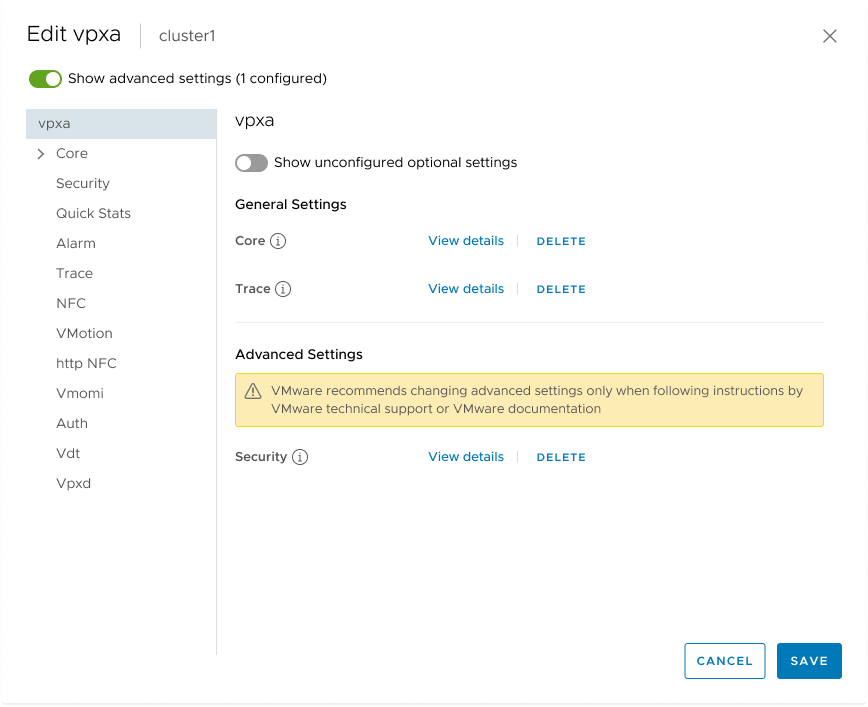
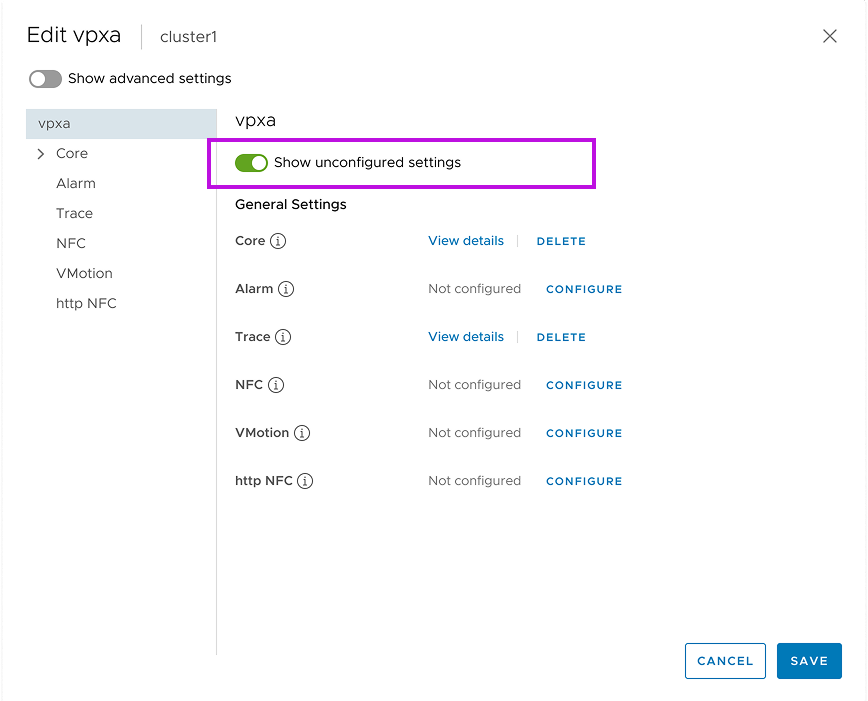
The solution: progressive disclosure through toggles
Show unconfigured & optional settings
Off by default — the view opens showing only settings that have been configured or are required. Admins see what they care about immediately. Toggling on reveals the full list for exploration or initial setup.
Show advanced settings
Hidden by default for most admins. But if advanced settings have been configured, they surface automatically. We never hide something the user has actively set. Toggling off collapses them back, keeping the view clean.
Click the toggles in the image to explore different states
Show advanced settings: on · Show unconfigured optional settings: off
Challenge 02
Finding Personality in a Utilitarian UI
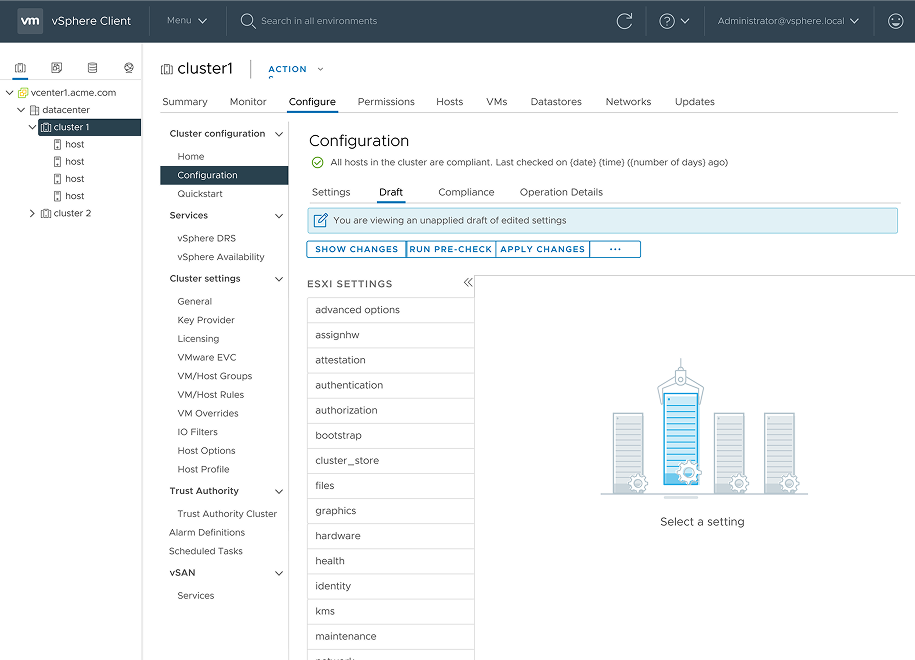
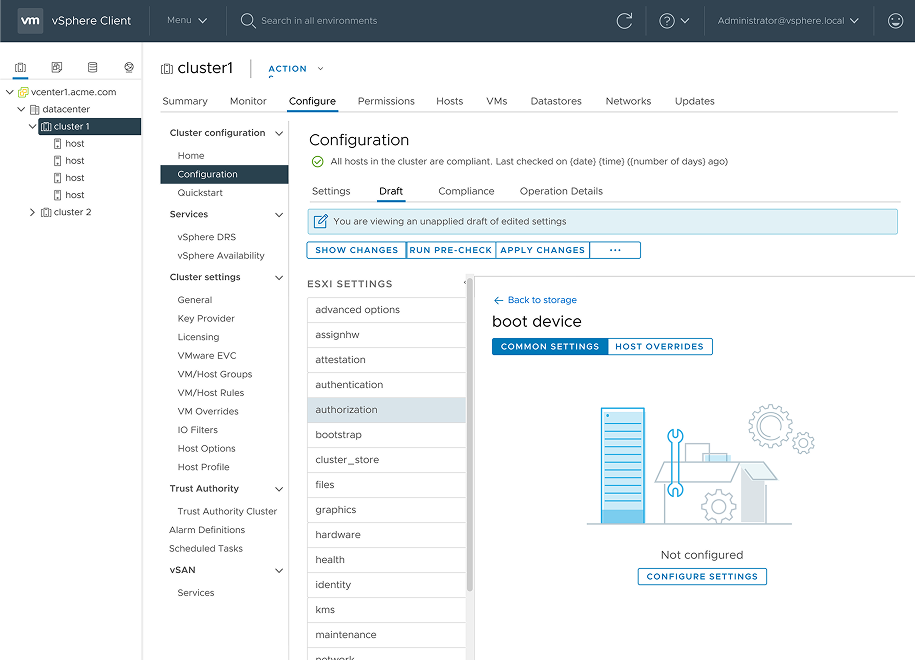
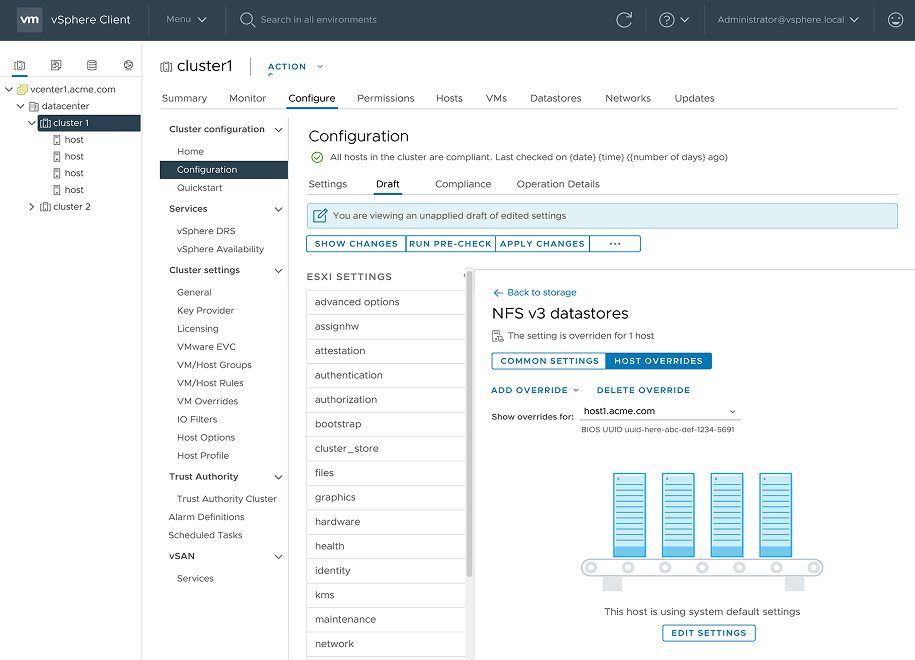
Configuration settings panels are inherently dense and text-heavy. There's little room for anything that isn't functional. Empty states are a rare exception: a moment of whitespace that most products leave blank. We used that space intentionally. Working with our visual designer, we created illustrations that brought warmth and gave admins a clear cue about what to do next.
Research & Iteration
This was my first project at VMware. The existing user personas didn't give me enough to design with confidence. I didn't know how admins thought about host configuration day-to-day, what tools they were already using, or how much they'd trust a new automated system. So I recruited participants myself through our design newsletter, which had a list of customers who'd opted in to give feedback.
VMware Design Research
Managing Host Configuration in vSphere Clusters — 60 mins
Are you a VI Admin managing the configuration of hosts in vSphere clusters? Are you currently utilizing Host Profile to deploy ESXi hosts? We would love to hear from you.
Join a 1-hour session to review design solutions for new vSphere features — including an enhanced experience to update host configuration at the cluster level.
8 participants · 6 United States · 2 Europe · Remote sessions
Before this feature existed, what admins described set the tone for the whole project:
"The current way of configuring hosts doesn't feel right — if something goes wrong, lots of things go wrong."
— VI Administrator, usability session
"I'm trying to automate the configuration handling, hopefully coming out with more of a centralized integration management."
— VI Administrator, usability session
Testing the toggles
For the configuration editing UI, I asked: "Is there a setting you would configure that you don't see here? What would you do?" Most participants discovered hidden settings using the "show unconfigured optional settings" toggle without any prompting. The progressive disclosure approach was intuitive, not a source of confusion.
Updating the onboarding flow
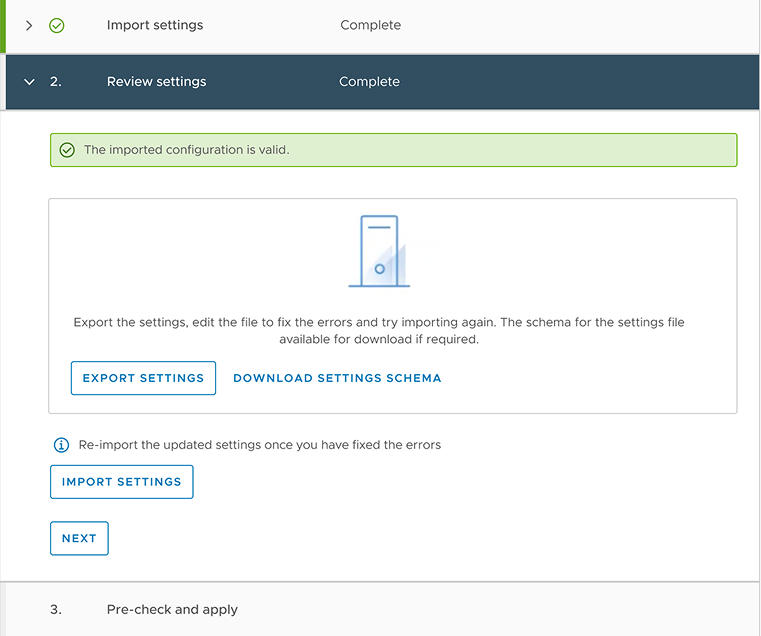
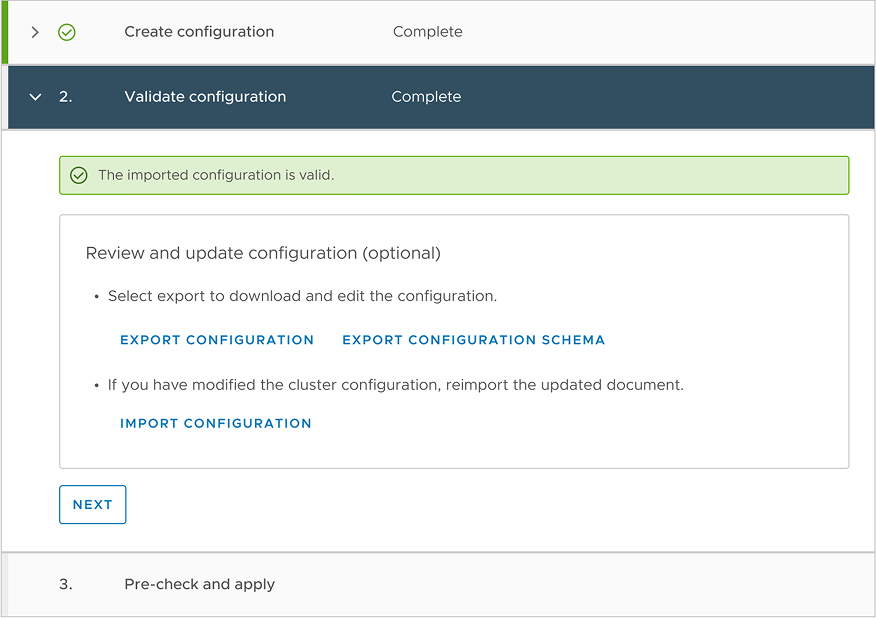
I inherited the onboarding flow when the lead designer went on parental leave. The structure was sound but the layout didn't make the next step obvious. After importing or selecting a host's existing settings, admins land in a state where they can optionally review and edit the configuration before applying. The update made this optional step more visible, with clear signposting of what they'd just done and what to do next. It reduced hesitation at a consequential moment.
Before
After
Button order in the compliance view
The compliance view had buttons ordered to match the system's internal logic rather than how admins actually think. The original sequence put Remediate before Run Pre-check, which is backwards from how admins actually think: why fix something before you know it's safe to fix?
Before
Host Settings
Summary
Monitor
Configure
Compliance
Check Compliance
Remediate
Run Pre-check
After
Host Settings
Summary
Monitor
Configure
Compliance
Check Compliance
Run Pre-check
Remediate
The reordered flow — Check Compliance → Run Pre-check → Remediate — matches the admin's mental model and gates the most destructive action behind a safety check.
Outcomes
The feature freed infrastructure admins to focus on delivering value to their business rather than spending time on manual configuration maintenance. Equally important: the GUI empowered junior admins without deep JSON knowledge to manage host settings confidently — no longer dependent on senior colleagues for routine tasks.
Initiating the research on my first VMware project shaped how I approach every project since. Personas are a starting point, not a substitute for real conversations. The quotes from those eight sessions gave the whole team a shared understanding of user reality that no internal document could have provided.